ROT Data Cleanup for Microsoft Copilot: Managing Redundant, Outdated, and Trivial Content

If it doesn’t add value, then it’s just noise.



Many organizations are investing heavily in AI-powered solutions, with Fortune 500 companies spending upwards of $3.6 million annually on Microsoft Copilot licenses (estimated by 10k users at $360 per user/per year). To unlock a documented ROI of $5–7 million each year, it’s crucial to deploy Copilot and Teams Premium strategically.
A series from AI reality → tool clarity → execution → optimization
Reality check: What’s actually happening with AI in enterprises
Tool clarity: Understanding Copilot vs ChatGPT vs Teams Premium
Execution: How to roll out Copilot successfully and prove ROI
Optimization: Choosing the right AI mix (Teams Premium vs Copilot) to scale value (you are here)
As we outlined in The State of AI in 2025: What’s Really Happening Inside Organizations, most enterprises are moving past AI hype and focusing on practical, measurable outcomes—making the choice between Teams Premium and Copilot a strategic decision, not just a technical one.
This blog will walk you through one of the most impactful features of Copilot: Meeting Recap. We’ll share why Meeting Recap is a game-changer, as well as key features, comparisons between Teams Premium and Copilot, and real-world deployment strategies, along with actionable tips for maximizing your investment.
Among the most valued features tied to the Microsoft Copilot experience, Meeting Recap stands out. As we’ll cover later in this post, the full Meeting Recap experience is also included in Microsoft Teams Premium, which is a key part of this comparison. Users rely on meeting, email, and document summarization to stay organized, but Meeting Recap consistently tops the list of “can’t live without” tools. By automatically generating summaries, capturing decisions, and tracking action items, Meeting Recap ensures that no detail is lost and enables seamless follow-up.
Meeting Recap is designed to help users stay on top of their meetings by automatically generating structured summaries with key decisions, action items, speaker timelines, topic cards, and a navigable transcript. It captures meeting notes, transcripts, recordings, and shared content in one place so users can review the most important details quickly and follow up without rewatching the entire meeting.
Let us dig in. Recording must be enabled and started for Meeting Recap to generate summaries, topic cards, speaker timelines, or transcripts. Without a recording, Recap features are not available. A recording can be started manually for each meeting or set-up in the Admin Center to automatically record all meetings.
Second, this functionality will only be available to members of your tenant. External or non-domain guests invited to meetings are unable to access Meeting Recaps.
If you’re still sorting through the differences between Copilot, Copilot Chat, and ChatGPT—and how governance and data security vary across each experience—we break that down in detail in Microsoft 365 Copilot vs ChatGPT vs Copilot Chat.
After recording a meeting, in Teams, click ‘Meet’ in the sidebar, then scroll down to a meeting that was previously recorded. Click on ‘View Recap’ and you will see the image below.
If you do not see the Meet app in the sidebar, open the More menu and search for Meet. Depending on your Teams client, it may appear under Apps or Recents.
Here is a walkthrough of the key features of Meeting Recap:
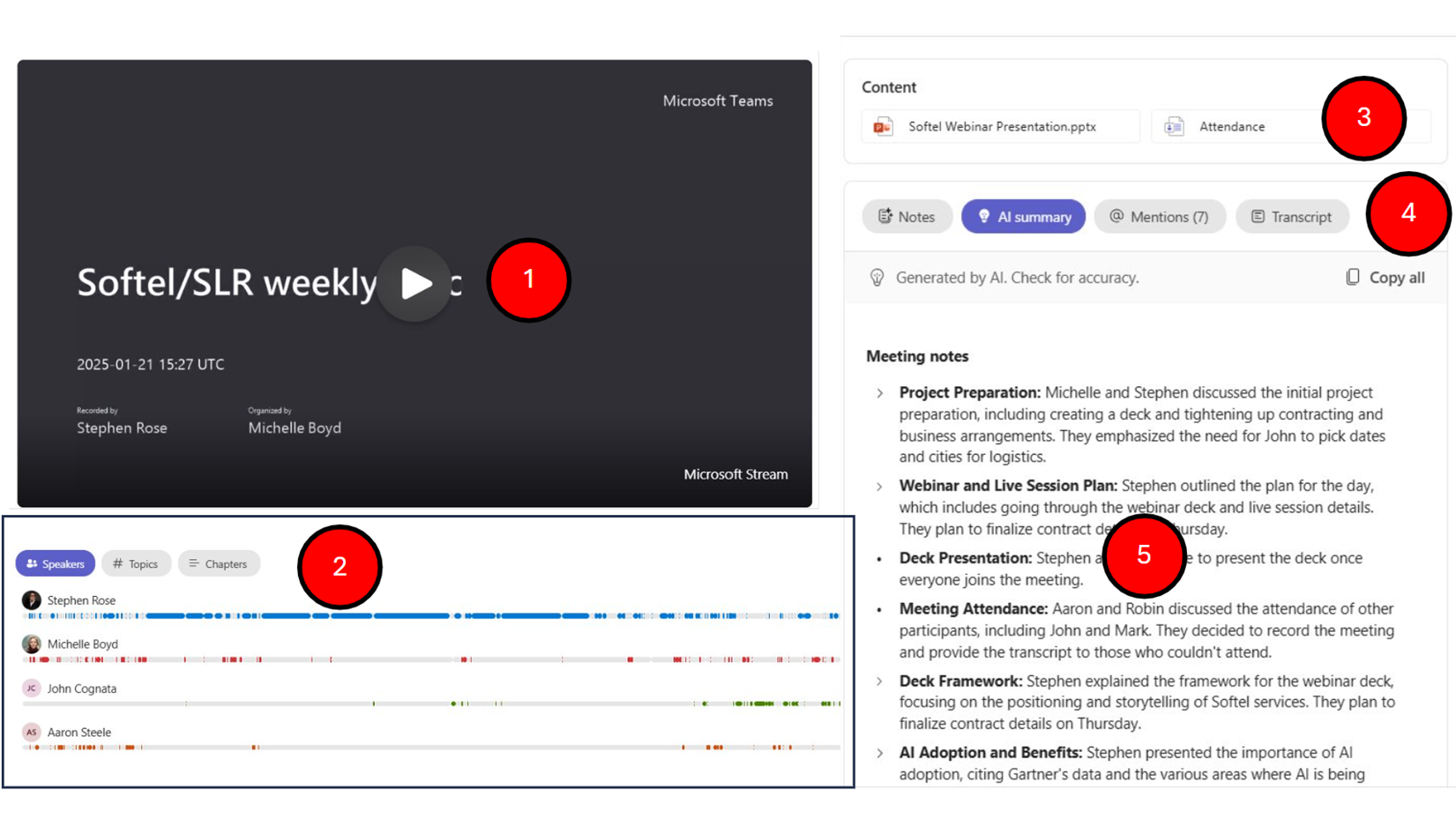
Figure 1: Meeting Recap interface
This is the full video replay of the meeting.
In this section, we see three buttons:
Speakers – This shows who was in the meeting and when they spoke. Clicking anywhere on each person’s timeline will take you to the portion of the meeting.
Topics – Copilot automatically creates topic cards for everything discussed in the meeting; they are color-coded. Clicking on any topic will take you to that portion of the meeting.
Chapters – Copilot breaks the meeting down into individual chapters, which represent a group of related topics, and shows them as a visual preview. Think of this like a PowerPoint deck. Every time you get to a new Chapter slide, which concludes the previous topic(s) and then introduces a new one.
Content
In this area, any content that was presented/shared will show up here. Assets like Office content as well as PDFs and other content formats. If you were the meeting coordinator, you can also see Attendance.
Attendance – This will take you to a dashboard that will show you who attended the meeting, how long they attended, and even if they participated.
Notes - Copilot captures and organizes meeting notes and transcripts, making it easy to find specific information later. You can search for keywords or phrases to locate key details quickly.
Notes, AI Summary, Mentions, and Transcript window.
Notes and AI Summary - After each meeting, Copilot generates a summary that highlights the key points discussed, decisions made, and action items assigned. This helps you quickly review what was covered without having to go through the entire meeting recording or notes. In addition to Meeting Notes, you will also get Action Items and Follow-Ups.
Action Items and Follow-ups: The feature identifies and lists action items assigned during the meeting, along with the responsible individuals and deadlines. This ensures that everyone is clear on their tasks and helps you keep track of progress.
Action Items- This allows you to see each time you were ‘@ mentioned’ in the meeting, and you can jump directly to that portion of the meeting.
Transcript – A full meeting transcript is available to view and download.
Meeting Recap is available in both Outlook and Teams. You can view summaries, notes, and action items directly from your Outlook calendar, the Teams sidebar, or even within a channel chat without switching between apps.
What if I told you that instead of paying $360 per user/year for Copilot, you could have this functionality for only $10 per month/user ($120 per user/year)?
Ladies and gentlemen, people of all ages! May I introduce you to Teams Premium.
Teams Premium is an add-on for Microsoft Teams. It provides some great, valuable added functionality to Teams, including:
Real-time translation.
The ability to host branded, large-scale events like webinars, town halls, and more with your company branding across the experience.
The ability to use your organization’s logos and colors to create custom meeting welcome screens.
Support for call management and call queues.
Support for green rooms during events and better controls for meeting coordinators who are not participants but can still manage the event.
Additional security features like:
End-to-End Encryption of meetings.
Ability to watermark content.
Automated meeting protection with sensitivity labels.
Now, all that is great, but here is the hack. With Teams Premium, you get the full Meeting Recap experience, including AI notes, action items, speaker timelines, topic cards, chapters, and searchable transcripts, at a significantly lower cost than Microsoft 365 Copilot.
Teams Premium gives users the ability to instantly recap missed meetings and action items, which accelerates onboarding, reduces follow-up time, and delivers immediate productivity gains.
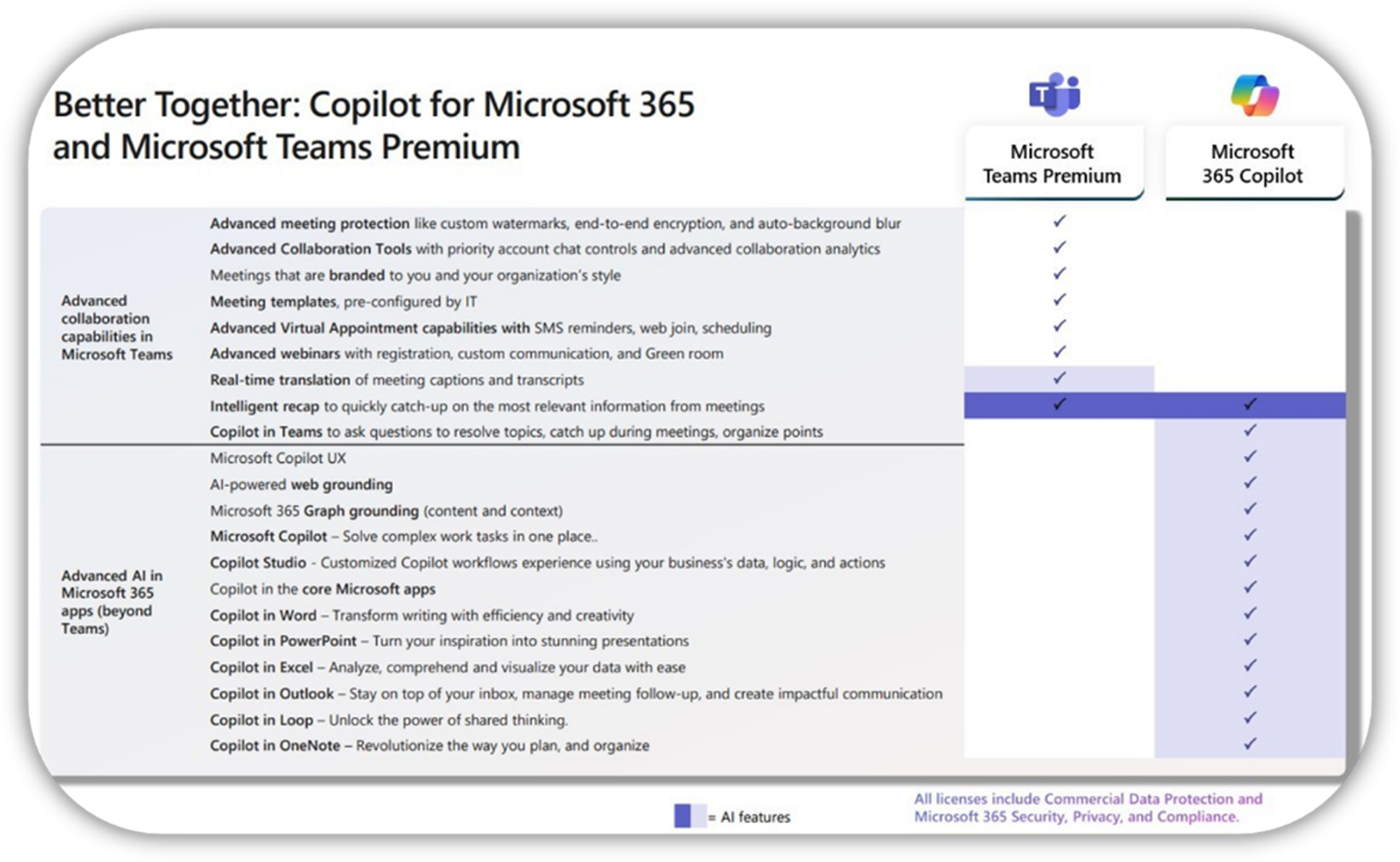
Note that there is a limit to the Copilot interactions in Teams.
Teams Premium AI only surfaces inside Teams meetings and meeting artifacts. It does not perform cross-application reasoning, cannot pull context from Outlook or SharePoint, and does not support multi-document synthesis the way Microsoft 365 Copilot does. As a result, it cannot check attendee availability, summarize emails, or turn meeting summaries into other documents like Word files or PowerPoint decks.
Since the Meeting Recap feature offers so much value, I often recommend that companies start with Teams Premium while they clean up and prepare their infrastructure and governance for Copilot.
Using Microsoft Teams Premium as an introduction to Copilot features has several advantages, including:
At this point, choosing the right mix of Teams Premium licenses and Microsoft 365 Copilot licenses really depends on your organization’s needs and Copilot for Teams usage patterns.
Two of the companies I have consulted with (both over 10k users) started with Teams Premium as they prepared their data and infrastructure for Copilot (more on this critical, pre-deployment step in the next blog). They have gone two different ways after starting with Teams Premium.
One ended up keeping ~80% of their users on Teams Premium. This user group consisted mostly of customer service reps and front-line workers who spent a lot of time in Teams and Teams meetings. IT gave anyone who asked for more functionality a full Microsoft 365 Copilot license.
My other customer ended up going in the opposite direction. They chose to move 80% of their users to a full version of Microsoft 365 Copilot and only keep 20% of their users on Teams Premium. This company did a lot of work before deploying Copilot to drive interest. They provided training and implemented Change Champions before migrating users from Teams Premium to full Copilot.
Either way, this is a fantastic way to deliver hands-on, real-world practical value for Copilot and give your users experience with a feature that will produce immediate ROI for both end users and the company at a fraction of the cost of a full Copilot rollout.
Note: 10,000 *$10 per user/month will now cost about $100k per month for Teams Premium. Some customers have received Teams Premium for as little as $7 per month, depending on their licensing agreement.
One of the issues with choosing the Teams Premium path is a lack of understanding of an individual’s Teams or Copilot usage. Visibility into user-level Teams and Copilot activity allows IT to right-size licenses, quantify value, and determine which users should remain on Teams Premium and which users are strong candidates for full Microsoft 365 Copilot. The Copilot Dashboard will give you some of this information in aggregate, but there is no way to look at individual users or groups and evaluate their usage patterns.
ENow’s True Adoption Center gives you the missing user-level insights that Microsoft tools do not provide. You can track who is actually using Microsoft Teams Premium, who is engaging with Copilot, and which groups demonstrate the strongest upgrade or downgrade readiness. With ENow’s Copilot Readiness Reports, including ‘Candidates for Downgrade to Microsoft Teams Premium’ and ‘Candidates for Copilot License,’ the process for tracking license readiness and adoption is simplified at the user level and in aggregate.
In this blog series, we will look at some of the steps you want to consider as part of your pre-deployment process. This includes having a clear vision for why you want end users to adopt Copilot, how you will support the change management process, how you will manage ROT (redundant, outdated, or trivial content), and how Azure Cold Storage can reduce monthly storage costs.
To ensure success, preparation is key. Use the checklist below for Teams Premium before deploying Copilot in Teams.
This approach aligns with the broader Copilot adoption challenge we covered in Unblocking Your Microsoft 365 Copilot Rollout, where defining success and aligning licenses to real user needs is critical to proving ROI.
Start by piloting Teams Premium with a small group and track their feedback, sharing your results and insights in the comments! Don’t forget to subscribe to updates. Let us know your questions or experiences with Teams Premium and Meeting Recap below; your feedback helps shape future content!
Ultimately, deciding between Teams Premium and Copilot is part of a larger AI adoption journey—one that starts with understanding where AI truly delivers value inside your organization.
Until then,
Stephen